After my Internet access lost connection from time to time, I wanted to monitor the signal quality of the cable router in Home Assistant. Due to lack of API, I use the router's management interface for the query and parse the output in Bash. With this approach, the values from almost any web GUI can be made available in Home Assistant.
Example 1: GUI -> curl without a login and multiple values with one call
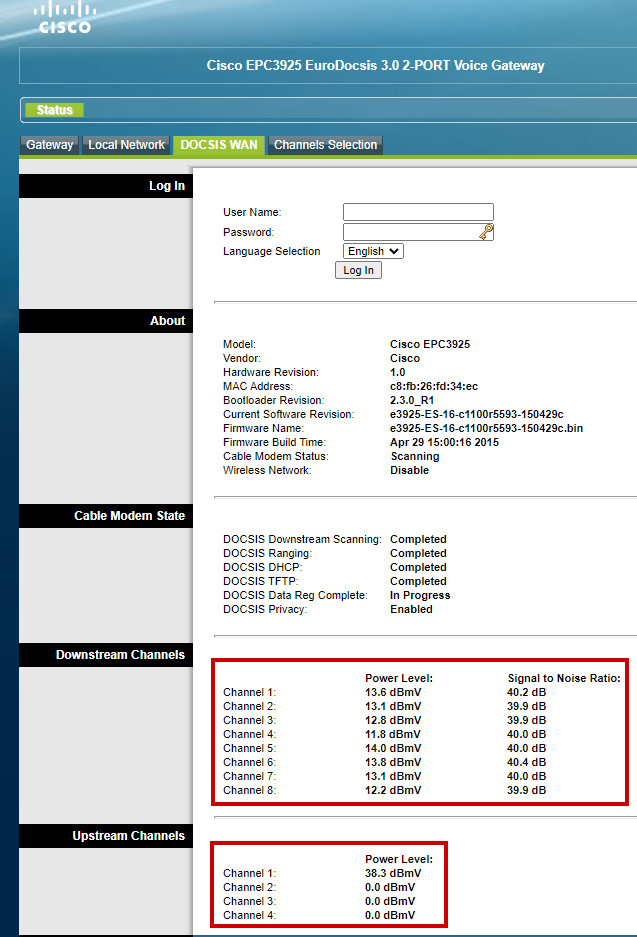
First, I take a look at the web GUI from which I want to query the data. In the simplest case, this makes the data available without a user login: Which was the case with the previous version of my current router:
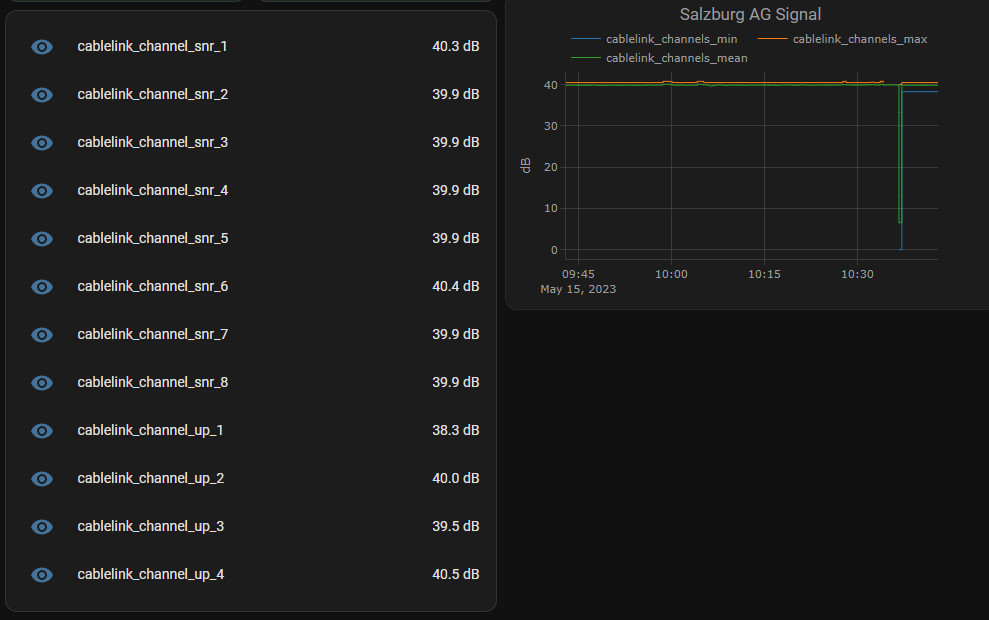
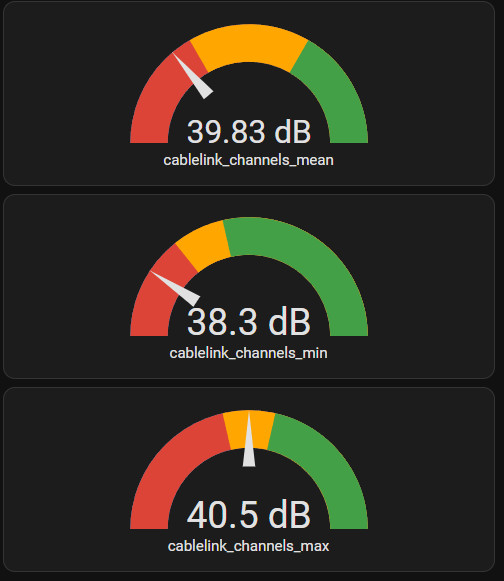
The goal is to make the GUI values available in Home-Assistant:
Step by step
As a first step I tried to see if the data can be downloaded in general. For this I downloaded the whole HTML source code of the page using the bash command curl and the router URL. For testing and compiling the command you can use a Linux-PC, the Home-Assistant-Docker-Container or Linux on Windows: WSL can be used.
First try: Downloading the home page using bash command: curl
curl http://192.168.0.1
As a response I get the source code of the start page, this includes the layout of the GUI as well as the status values:
To extract the values from the source code, it can be passed to certain bash functions. As an example, "grep" can extract certain passages from the text using regex . It is also possible to pass the text blocks first roughly and then by means of a more detailed definition another time to "grep". For example, the values from the displayed HTML source code can be retrieved and extracted as follows:
curl - call and pass to grep to extract the desired text passages:
To read multiple values with one call, these can first be retrieved via the command_line platform and later used as individual entities using template sensors.
Die Entität cablelink_channels sammelt alle Werte und trennt diese mit einem Leerzeichen.
Template sensors, extract individual values
Templates can be used to access the individual values by transforming the string into an array via its blanks. The values of the array can then be used via the respective index [0], [1] ... can be used:
Example 2: Web GUI with user login: Technicolor Router (Salzburg AG Cablelink).
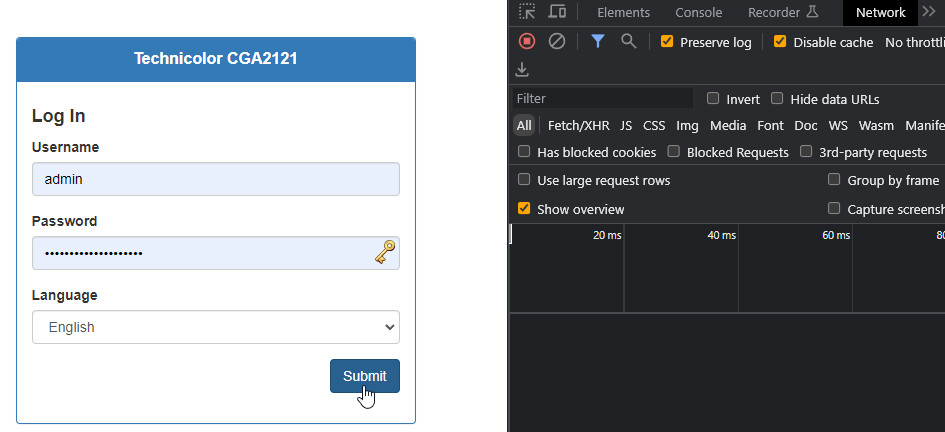
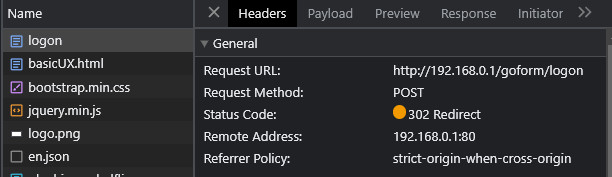
If the status page of the WebGui can only be accessed after a user login, we have to take a closer look at the login in the developer tools (F12) with a browser (e.g. Google Chrome):
The "Network" tab tells us how the data for the login process is transferred:
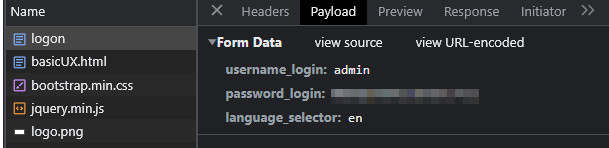
A look into the payload shows us the form data transmitted via "POST":
Converted to a curl command, the login would look like this:
curl -X POST http://192.168.0.1/goform/logon -d "username_login=admin&password_login=mysupersecretpassword&language_selector=en" -c cookies.txt;
Of course, in the command line the password must be adjusted accordingly. The parameter "-c" creates a file with the cookies used for the session, i.e. the information for the login that took place. If we use this parameter for another query, curl is logged in to the GUI.
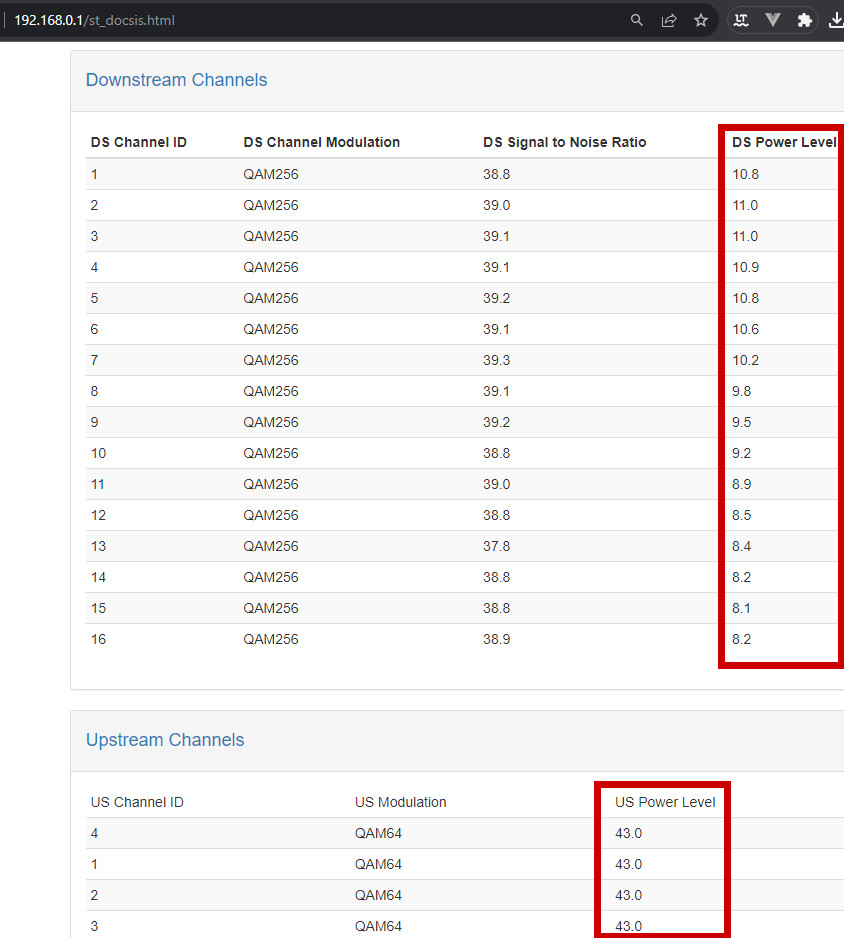
Now we can get the details for our monitoring from the status page: http://192.168.0.1/st_docsis.html
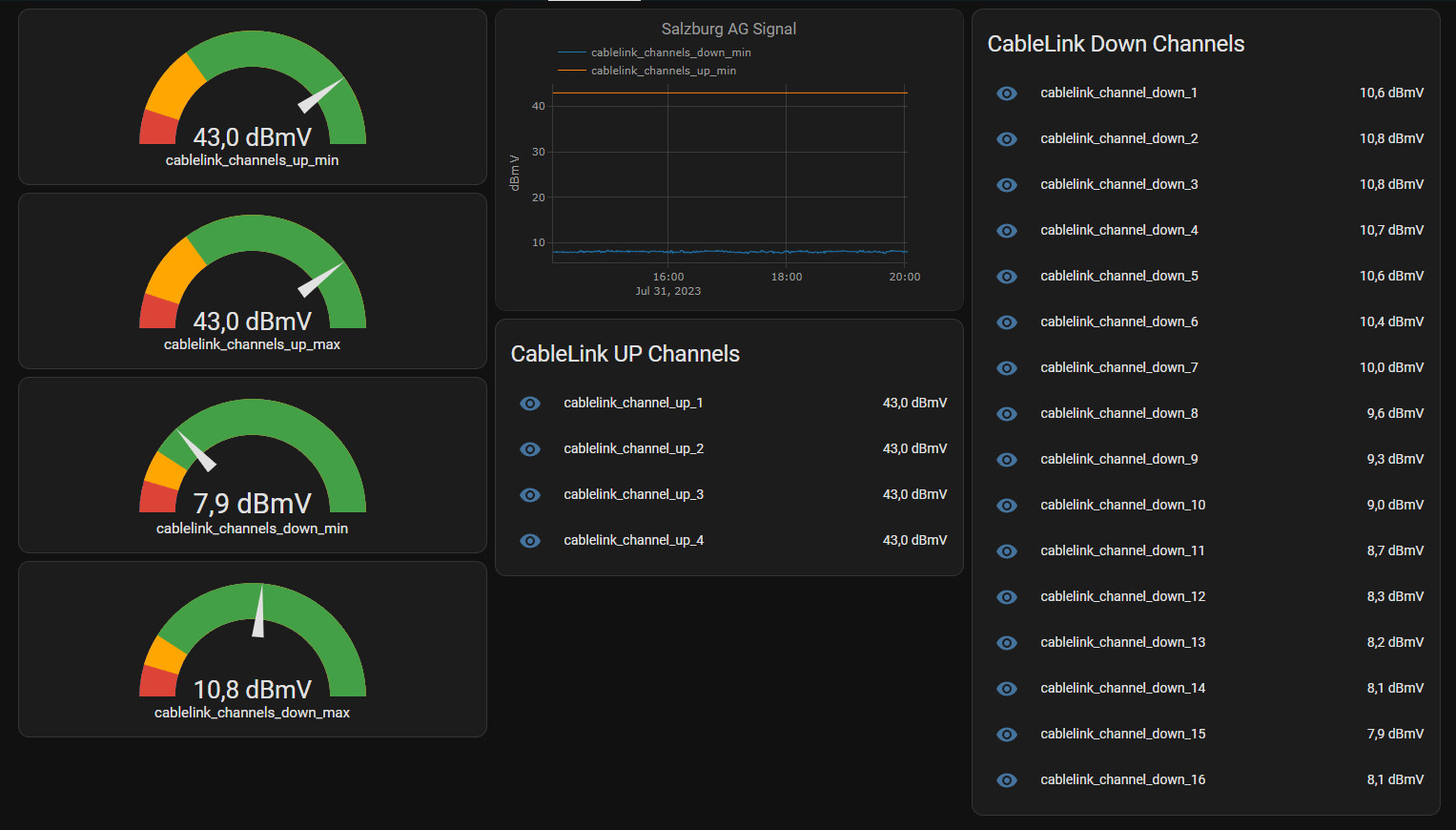
The goal is again to provide the values of the status page in Home Assistant:
The following command line performs a login and downloads the complete HTML source code of the status page:
The command collects all channel data in a sensor named cablelink_channels and separates them with a space, appropriate templates can then extract the individual values:
states("sensor.cablelink_channels").split(" ") creates an array with the individual values. The respective values can be extracted with its index [0], [1].
Developer tools: Template testing
For testing and compiling the templates, i.e. extracting the individual values, the developer tools in Home-Assistant help.
Under "TEMPLATE" the "value_template" values used in the configuration.yaml can be tested:
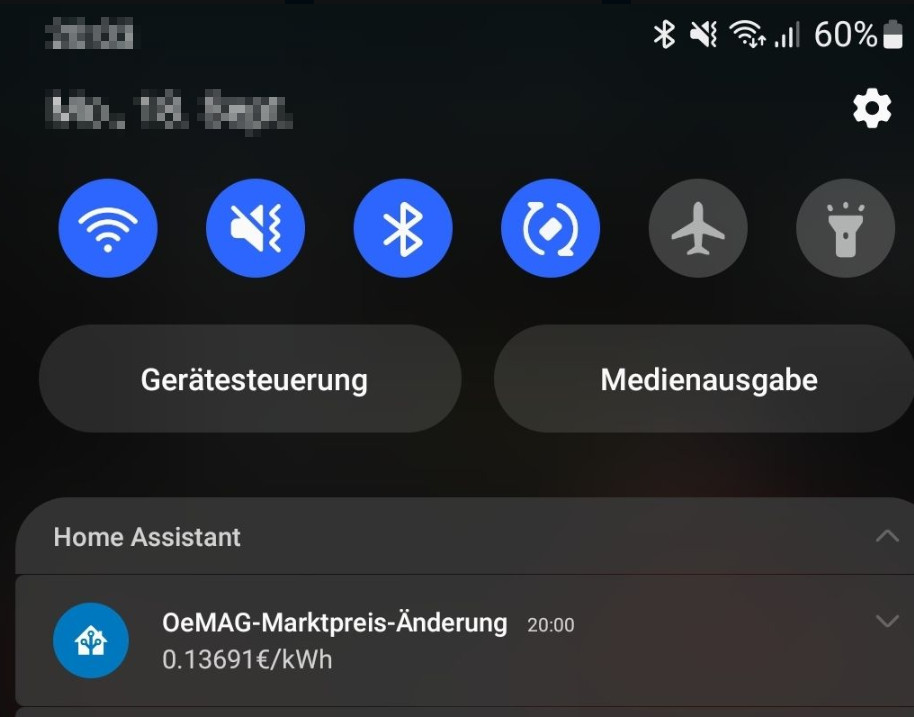
Another example is the feed-in tariff for a PV system in Austria. The market price for feeding into the Ömag can be taken from the following website: https://www.oem-ag.at/de/marktpreis. A look into the developer tools of the browser reveals the HTML source code and helps to compile the bash command:
I was able to read the tariff with the following command:
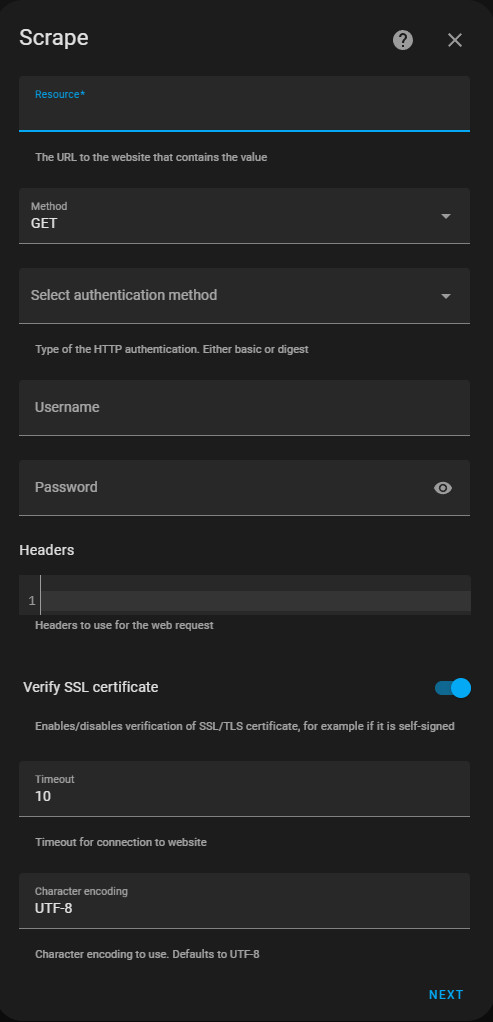
For single values, the integration "Scrape" can be used as an alternative to the command_line sensor. Scrape works with CSS selectors and can thus extract individual values from the web pages:
The following input mask can be used to store the details for calling the web page:
Even though extracting via CSS selectors certainly offers added value, in my opinion Bash commands can still be tested much more easily in a Linux OS before they are used in Home-Assistant.
Conclusion
The command-line platform in Home Assistant can basically do everything that Home Assistant's operating system allows. Among other things, Linux commands can download certain web pages and extract their data, allowing them to be made available in Home Assistant without corresponding integration.
Thanks for this great Samples, especially the ÖMAG value, that I was searching for a long time. However the Ömag value is delyed on the named website. I used the following command:
echo $(curl https://www.e-control.at/de/marktteilnehmer/oeko-energie/marktpreis/ | grep -Po "demzufolge (.*?) Euro/MWh" | grep -Po "[0-9,]{3,7}" | sed 's/,/./g') / 1000 | bc -l
to grab it from a different site. The remaining problem is, that THIS price is updated 1-2 days BEFORE the effective change. Without matching the current quarter with the one on the website, the value is still wrong for a few days.
If you have a suggestion how to circumvent that, this would be a great addition.
B
Bernhard
Thank you very much for your Input.
I started testing some logic on this site. The test runs on this page: https://www.libe.net/oemag





 ({{pro_count}})

Questions / Comments